Platform       Solutions       Pricing

Workforce Management

Scheduling

Create and share schedules in minutes. Reduce overstaffing and ensure you always have the right people on the floor.

Absences & Availability

Stop the back-and-forth. Track time-off requests and employee availability in one centralized calendar.

t

Who’s Working Board

Get a real-time snapshot of your entire operation. Instantly see who is clocked in, who’s late, and who’s on break.

Time & Attendance

}

Punch Clock

Secure, user-friendly options to eliminate time theft and human error. Support for web, mobile, and biometric hardware.

Time Cards

Automated digital time cards that simplify approvals. Spend less time chasing paper and more time growing your business.

Payroll Integration

Push accurate data to your payroll provider in clicks, not hours. We play nice with the platforms you already use.

Employee Engagement

Team Communication

Keep everyone in the loop with secure group chats and direct messaging. No more missed texts or messy email chains.

Company News Board

A digital hub for announcements. Ensure every employee sees important updates, safety notices, and company wins.

Employee App

Put the power of TimeWellScheduled in your team’s pocket. Employees can view schedules, swap shifts, and clock in directly from their mobile devices.

Operations & HR

HR Suite

Centralize employee training, asset tracking, and digital files. Maintain compliance with comprehensive, easy-to-access records.

Project Tracking

Monitor labor costs against specific projects or tasks. Gain visibility into equipment usage and real-time productivity.

Retail

Hotel

Restaurant

Grocery Store

Long Term Care

Compare Alternatives

How To Transfer TimeCards to Sage Peachtree

May 9, 2012

Generating the CSV file

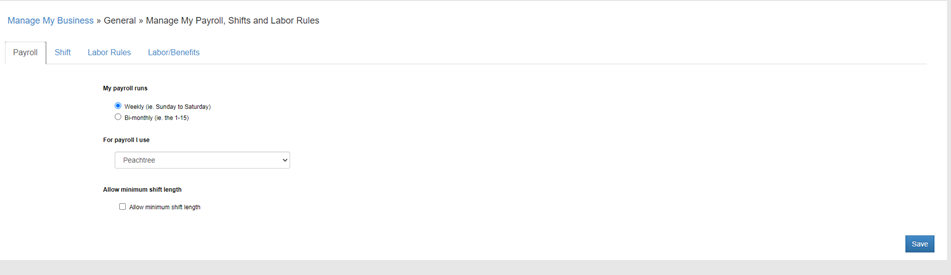
1) Go to Manage My Bussiness and verify that Peachtree is selected, if not select it and save the setup:
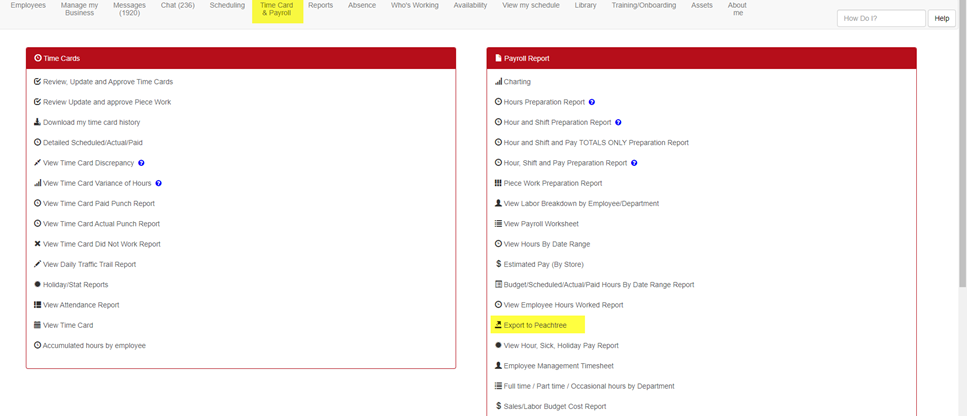
2) Go to the Reports option and select Export to Peachtree:
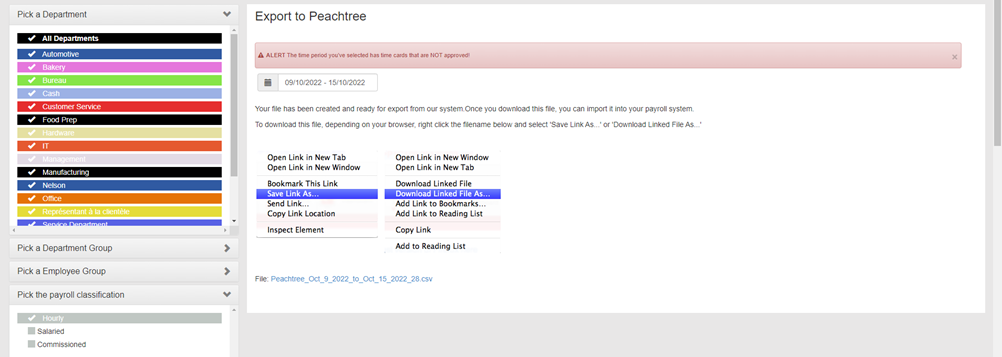
3) Select the information according to the steps mentioned in the preparation report and once everything is done click on Create Report.

4) Finally the CSV file will be generated, save it in your hard disk by clicking on Save Link As, as shown in the screen:
Importing in peachtree:

1) In the File option, go to Select Import/Export.

2) In the select Import/Export screen, click on (1) Time/Expense, then select (2) Time Ticket Register and finally click on (3) Import

3) Go to the the options tab (1), select the file to be imported (2) and finally press OK (3), the data will be imported.


Let’s Work Together!

Don’t waste another minute – Try our 30 day trial.

Feb 2023

Have questions? We have answers. Private Notes on Time Card Private notes are now readable when reviewing and approving time cards. To learn more, read here. And the winner is... Leave a Google review Congratulations to Canadian Tire Store #326 - Calgary and Kathy M...

read more

Scheduling and Time-clock Software for Today’s Needs

Quickly create, edit and oversee scheduling with ease.

No credit card required

Scheduling and Time-clock Software