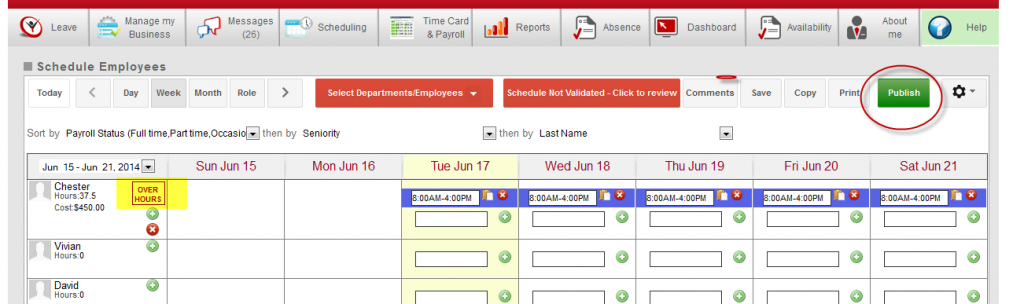
This support topic is to help you to be able to know how to customize the alerts that each employee and supervisor will get.
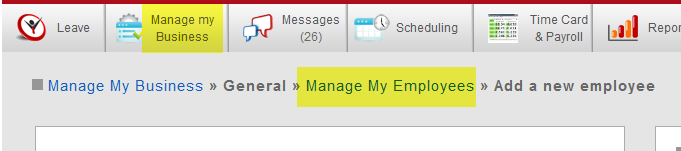
To start you will want to make sure that you’re adding a new employee or you’ve selected an employee from the “Manage My Employees” option in the “Manage My Business” Tab.
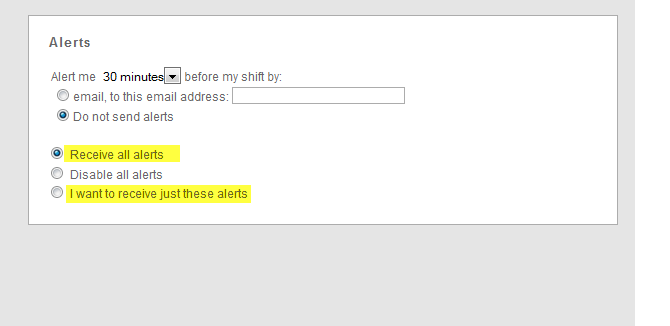
As of version 2.0.31 you’re able to not only turn all alerts on or off, you’ll also be able to go deeper and select which of the alerts this individual will receive.
If you’d like to have an employee or supervisor only receive certain alerts you’ll select the 3rd option “I want to receive just these alerts” and you’ll get a list of additional options. Here is the list of options and below that is a description of each option.
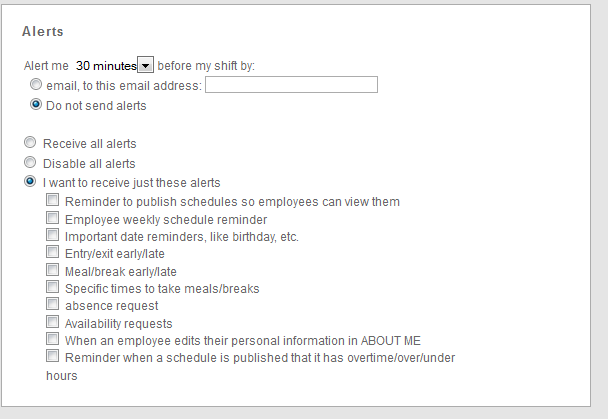
1. Reminder to publish schedules so employees can view them
This is to remind supervisors who still have unpublished schedules and they only have a day left before the schedules are supposed to be sent out.
2. Employee weekly schedule reminder
This option is to send a weekly email alert to the employee with their schedule for that upcoming week.
To get this alert to work best you’ll want to set which date to send out your schedules in the “Manage My Schedule Settings and Time Card Settings” option under the “Manage My Business” tab. This will also influence when supervisors who need to publish schedules will receive their alerts for unpublished schedules. (If they have alerts enabled)
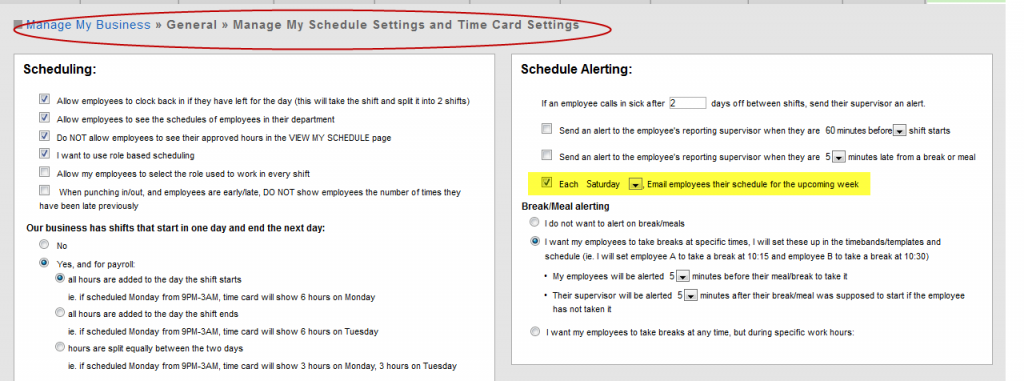
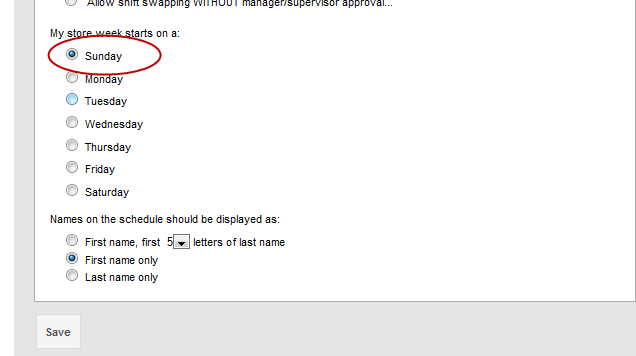
Scroll down on the same page and you’ll be able to set which day your store week starts. Our example has schedules being sent out on Saturday for the week starting Sunday until the following Saturday.
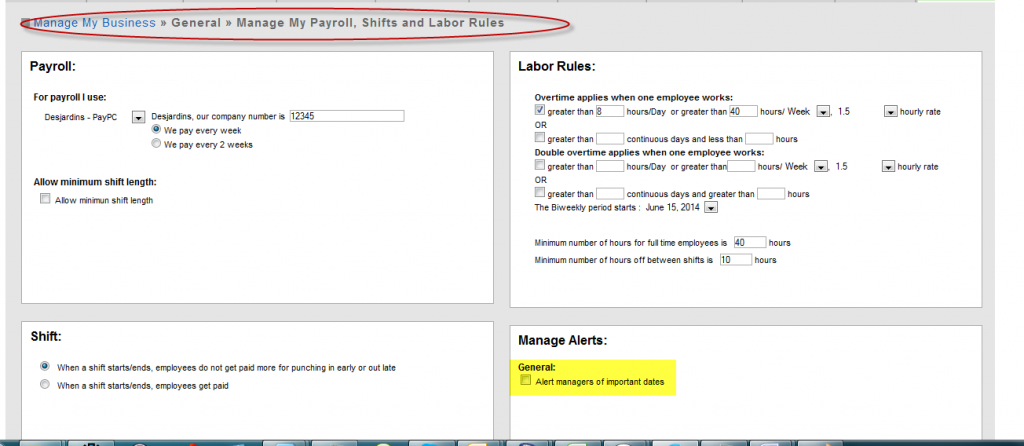
3. Important date reminders, like birthday, etc.
If you’d like your supervisors alerted on important dates like an employees birthday, hire date or upcoming performance review date. This information is gathered from their employee profile.

4. Entry/exit early/late
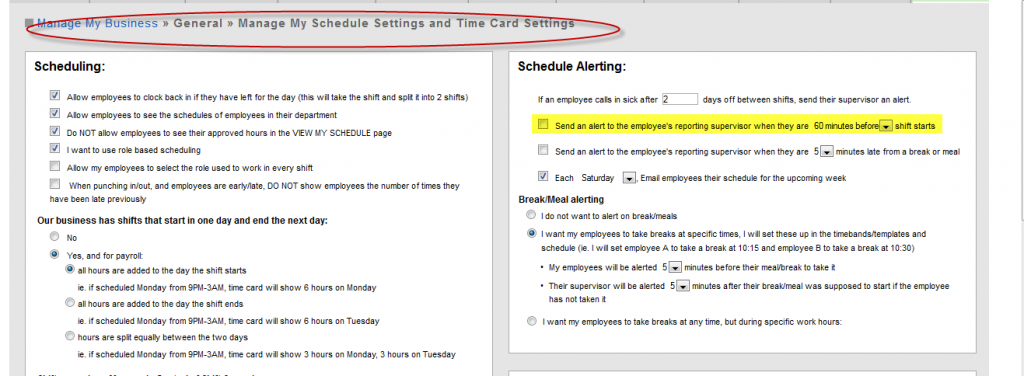
This alert is set up under “Manage My Schedule Settings and Time Card Settings”, if enabled it sends an email to the role supervisors that indicates that this person is early, late or didn’t show up at all. If the employee clocks in late the supervisor report will include the number of minutes late.
You must enable this option for anyone to receive these alerts. You can change your early or late timing with the drop down menu.
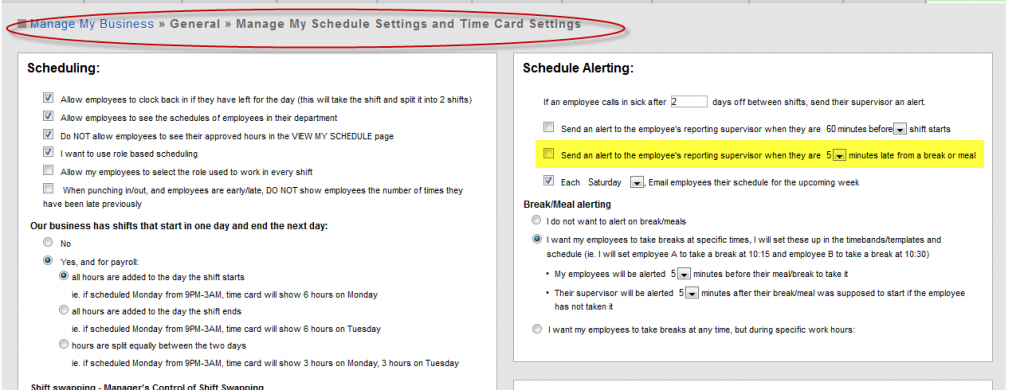
5. Meal/break early/late
You can enable this in the same section as the previous and can alert supervisors if employees are a certain amount of minutes late coming back from their break. Select how late they must be before the alert is sent with the drop down menu.
6. Specific times to take meals/breaks
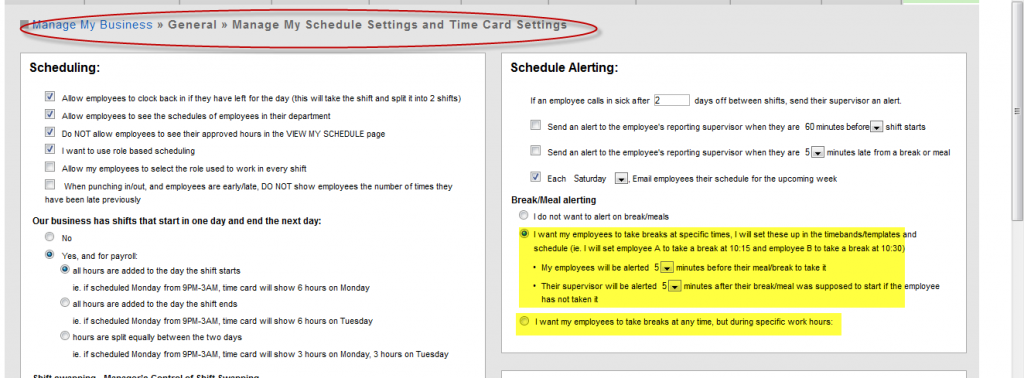
This is for those who have set times for meals and breaks, you can enable this to give your employees a reminder when it’s their turn to take a meal or break.
Also for supervisors it will send an email that indicates when their employees hasn’t taken the suggested meal or break.
7. Absence Request
This is related to all emails sent in the process of absence requests, approvals or rejections.
Employee view: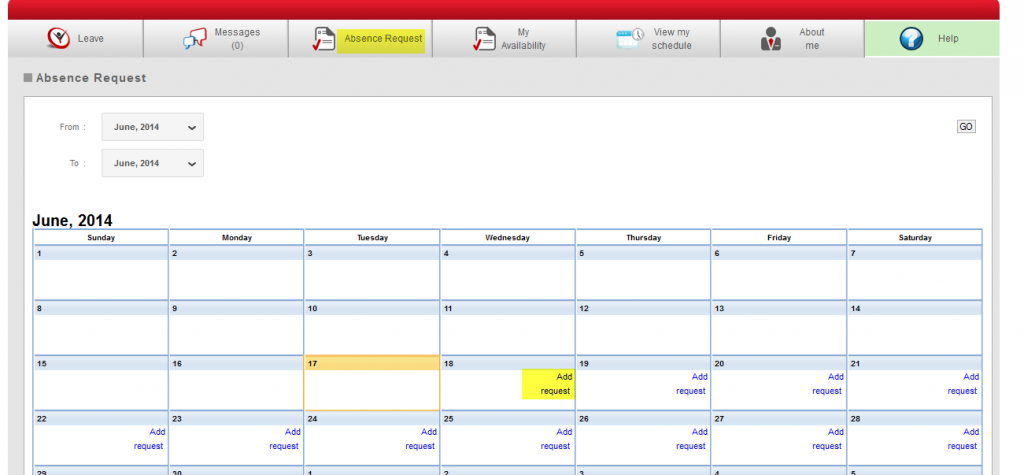
Supervisor/admin view:
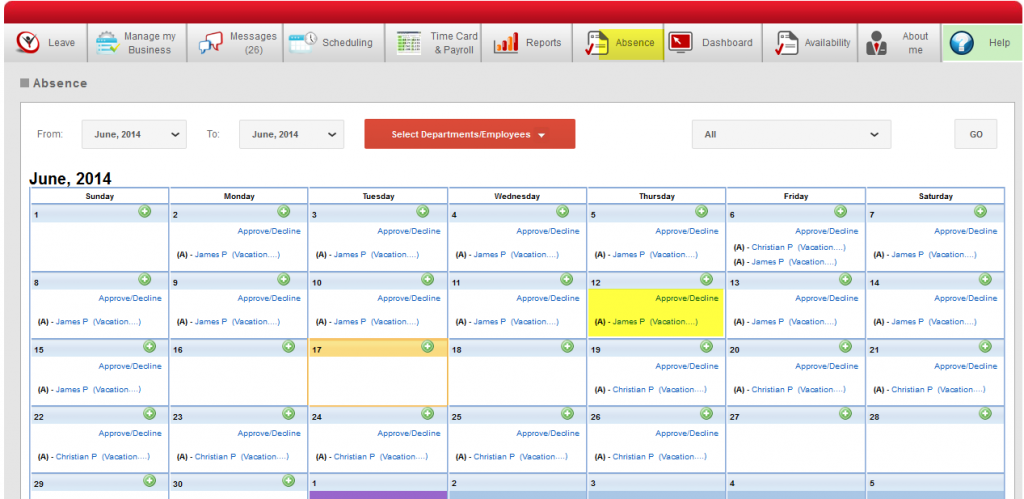
How it works:
When enabled and an employee makes a request, it is sent to the role supervisor, this supervisor can approve or decline it. If it’s approved it sends an email (request approved) to the rest of supervisors and the requesting employee. If it is rejected, only the employee gets a request declined email.
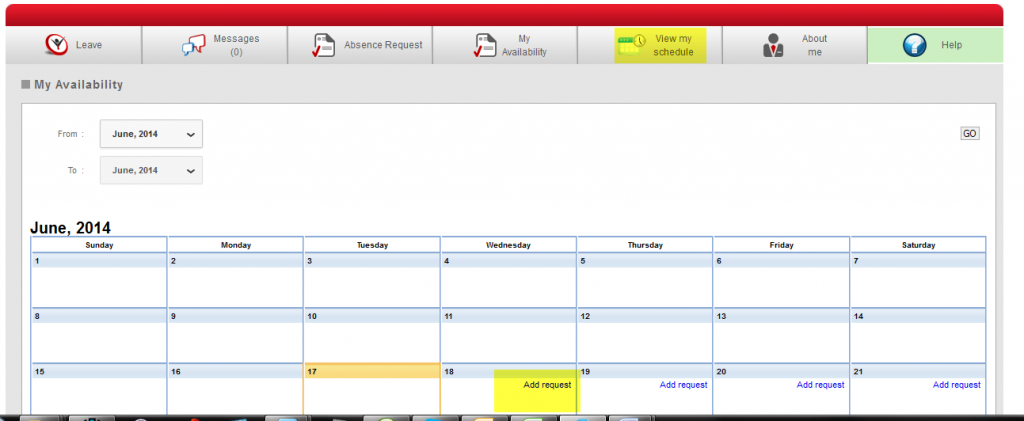
8. Availability requests
This is related to all emails sent in the process of requesting a availability request, approval or rejection.
Employee view:
Supervisor /administrator view:
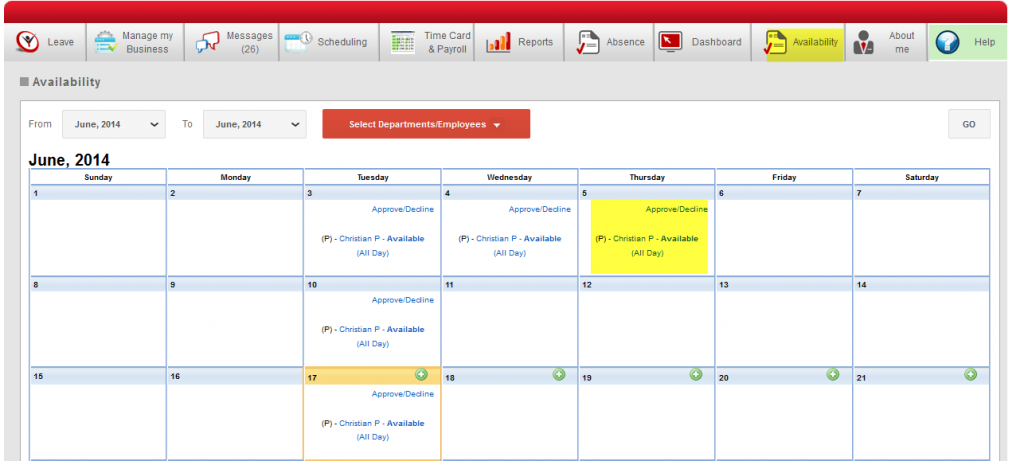
How it works:
When an employee makes a request, it is sent to the role supervisor, this supervisor can approve or decline it. If it’s approved it sends an email (request approved) to the rest of supervisors and employee. If it is rejected, only the employee gets a request declined email.
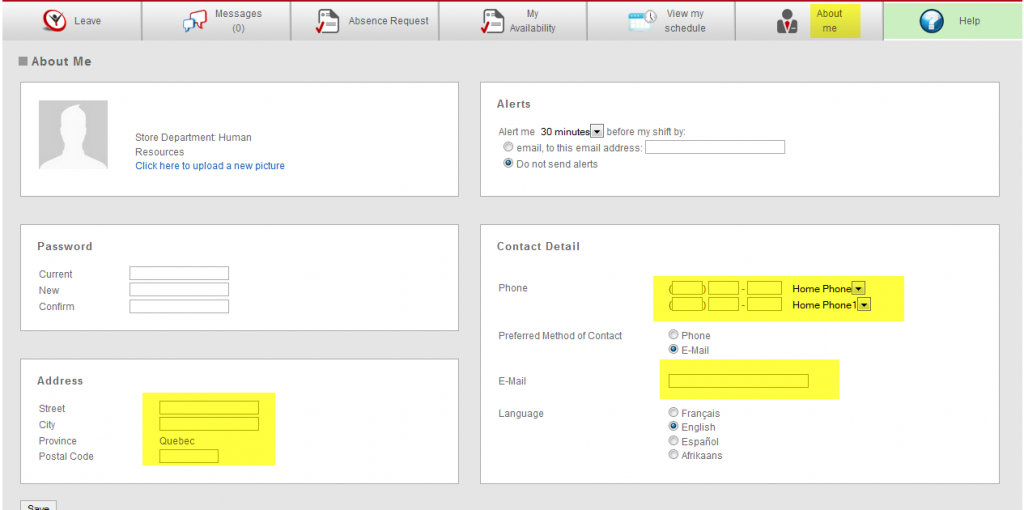
9. When an employee edits their personal information in ABOUT ME
Employees have the option to edit their personal data, but if they edit the fields in yellow, it sends an email to role supervisors
10. Reminder when a schedule is published that it has overtime/over/under hours
When this is alert is enabled and a department is published or unpublished with overtime employees or those who are over/under hours , it will send an email to the role supervisors that indicates it is publishing a group of schedules.